Visualização de Dados

Treinamento em R

Why Visualize Data?

The Same Data, Three Ways

Average VAT gap by industry:

As a Table:

industry avg_gap
Retail 8209
Services 12158
Manufacturing 8861
Technology 17238

As Numbers:

min mean max
-84038 11411 125974

Which tells the story instantly?

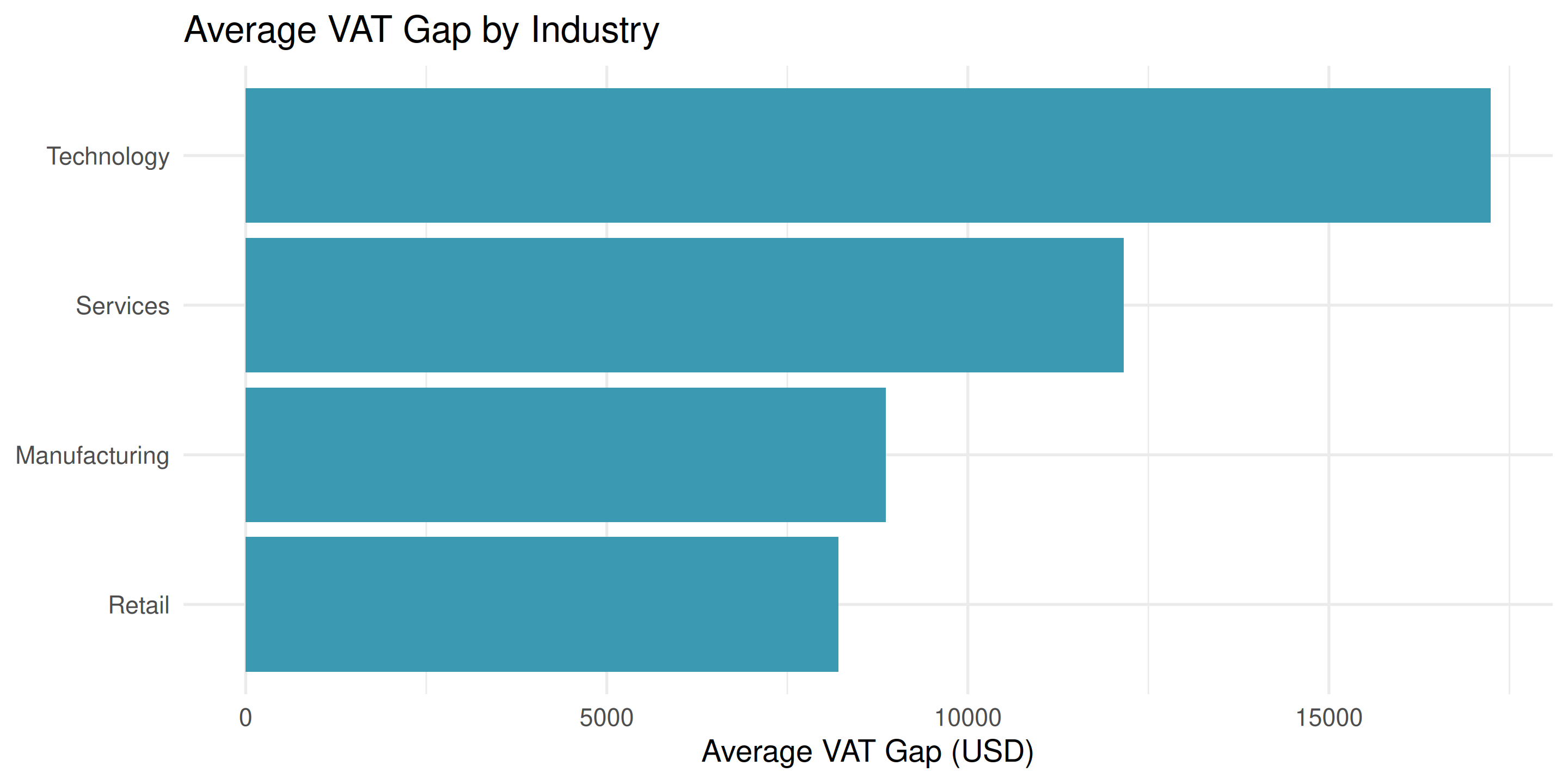
The Same Data as a Plot

Now we instantly see: Manufacturing has the highest average gap!

Why Visualize?

For tax administration:

  1. Spot patterns quickly - compliance trends, outliers, seasonal effects
  2. Communicate to stakeholders - ministers, directors, field officers
  3. Support decisions - which sectors to audit? Where to focus resources?
  4. Build trust - transparent, honest representation of data

Nota

A good visualization answers a question immediately

Principles of Effective Visualization

Three rules:

  1. Show data, not decoration - remove unnecessary elements
  2. Make patterns obvious - use appropriate chart types
  3. Be honest - don’t mislead with scale or distortion

❌ Bad: - 3D charts - Rainbow colors with no meaning - Alphabetical sorting

✓ Good: - Simple, clear charts - Meaningful colors - Sorted by value

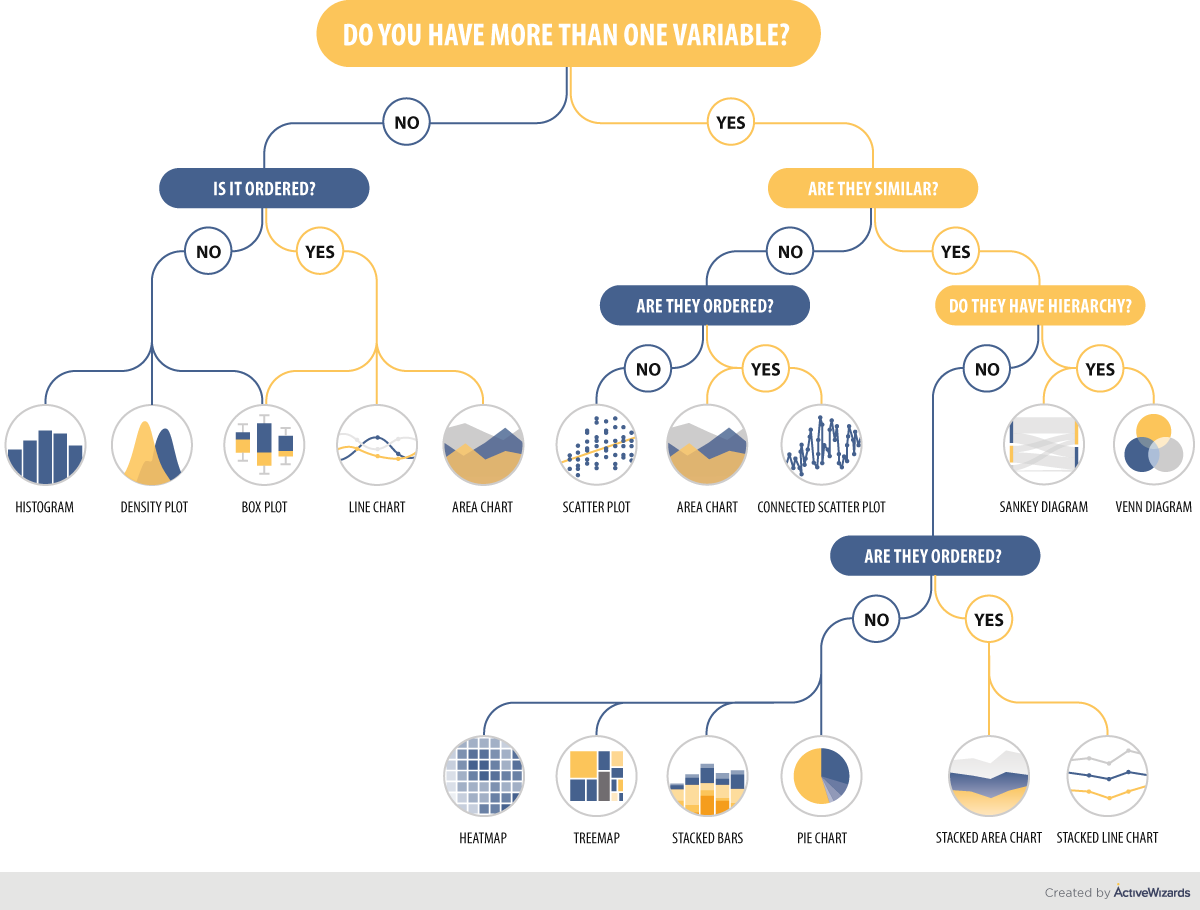
Choosing the Right Chart

Source: ActiveWizards

Today’s focus: Bar charts, line charts, scatter plots

The Grammar of Graphics

What Makes ggplot2 Different?

Most tools: “Make me a bar chart”

ggplot2: Build plots layer by layer with a systematic grammar

Nota

If you understand the grammar, you can create ANY plot

Three essential components:

  1. Data - what dataset?
  2. Aesthetics - map variables to visual properties (x, y, color)
  3. Geometry - what shapes? (bars, points, lines)

The ggplot2 Template

Every plot follows this pattern:

ggplot(data = <DATA>, aes(x = <VAR1>, y = <VAR2>)) +
  geom_<TYPE>()

Example:

ggplot(data = vat_gap_analysis, aes(x = industry, y = vat_gap)) +
  geom_bar(stat = "identity")

Importante

Note the + at the end of the first line - this connects layers together!

Building a Plot: Step by Step

Step 1: Tell ggplot what data

ggplot(data = vat_gap_analysis)

Empty gray box - ggplot is ready but doesn’t know what to plot

Building a Plot: Add Aesthetics

Step 2: Map variables to x and y
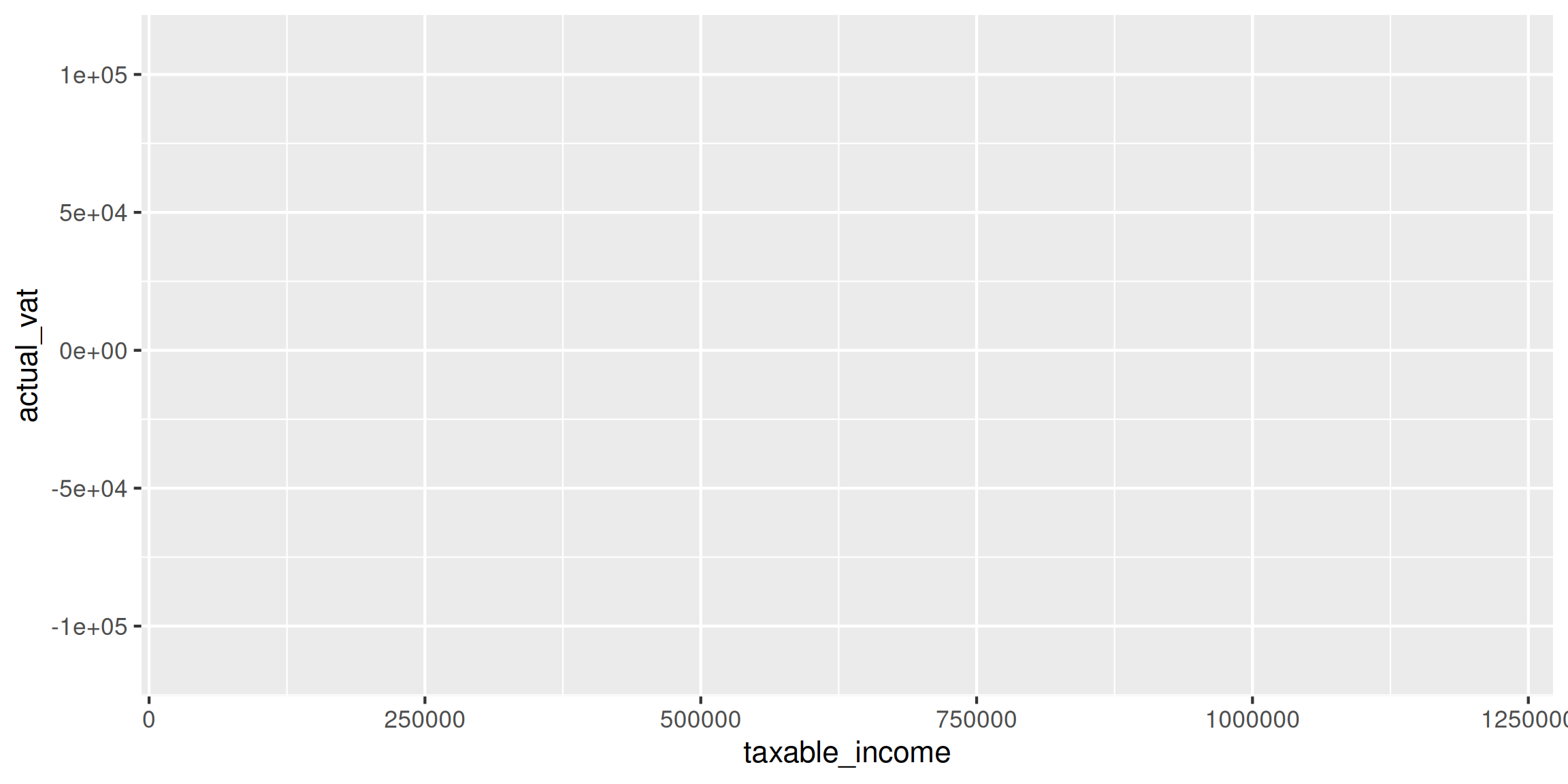
ggplot(data = vat_gap_analysis, aes(x = taxable_income, y = actual_vat))

Now we have axes, but no data yet!

Building a Plot: Add Geometry

Step 3: Add geometric shapes
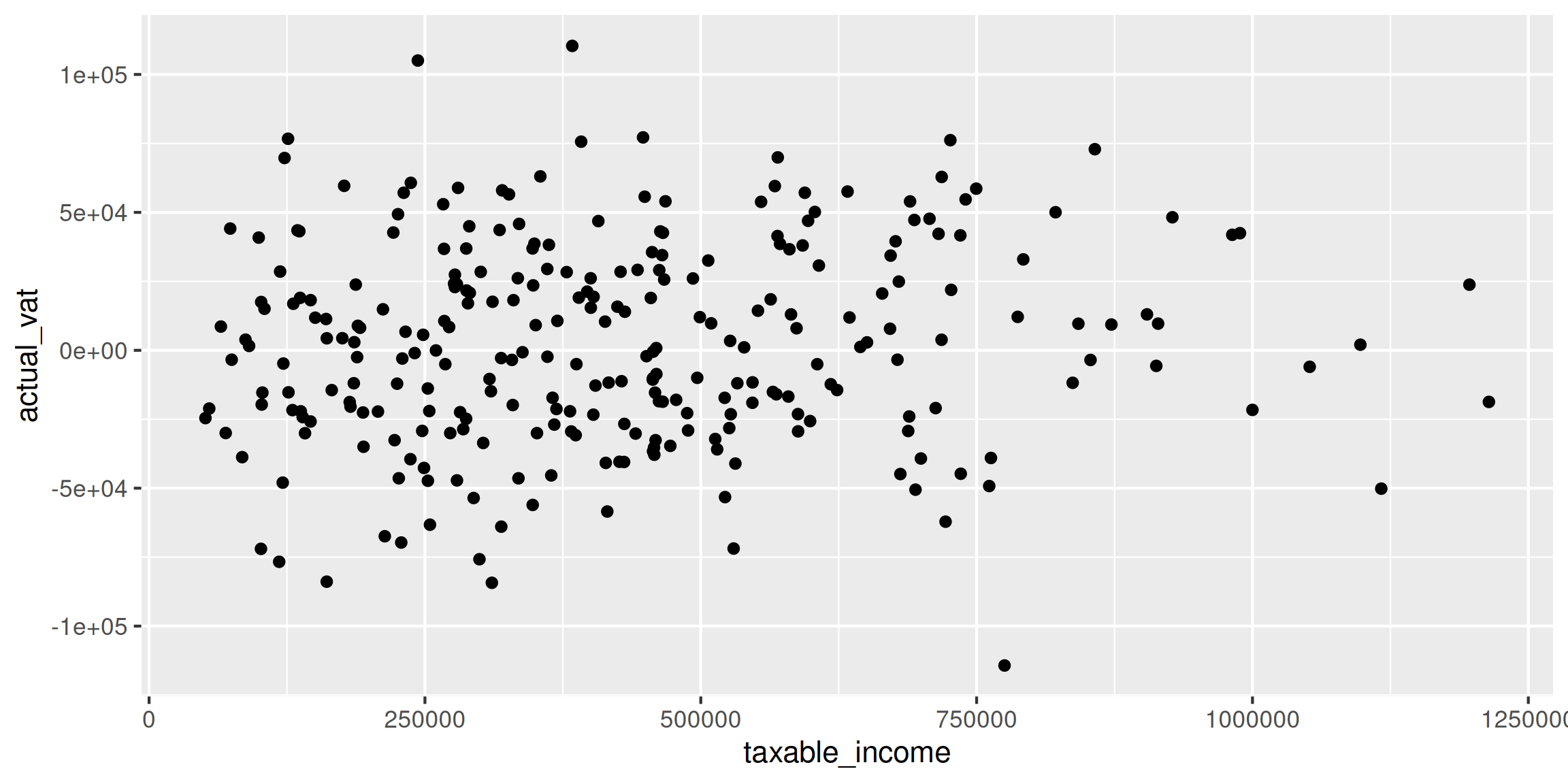
ggplot(data = vat_gap_analysis, aes(x = taxable_income, y = actual_vat)) +
  geom_point()

Complete plot! 🎉

Understanding Aesthetics

What Are Aesthetics?

Aesthetics map your data to visual properties

Three main aesthetics you’ll use:

  1. x - horizontal position
  2. y - vertical position
  3. color - color of points/lines/bars
# Map industry to x-axis, VAT gap to y-axis
aes(x = industry, y = vat_gap)

# Add color by firm size
aes(x = industry, y = vat_gap, color = firm_size)

Position: x and y

The foundation of every plot:
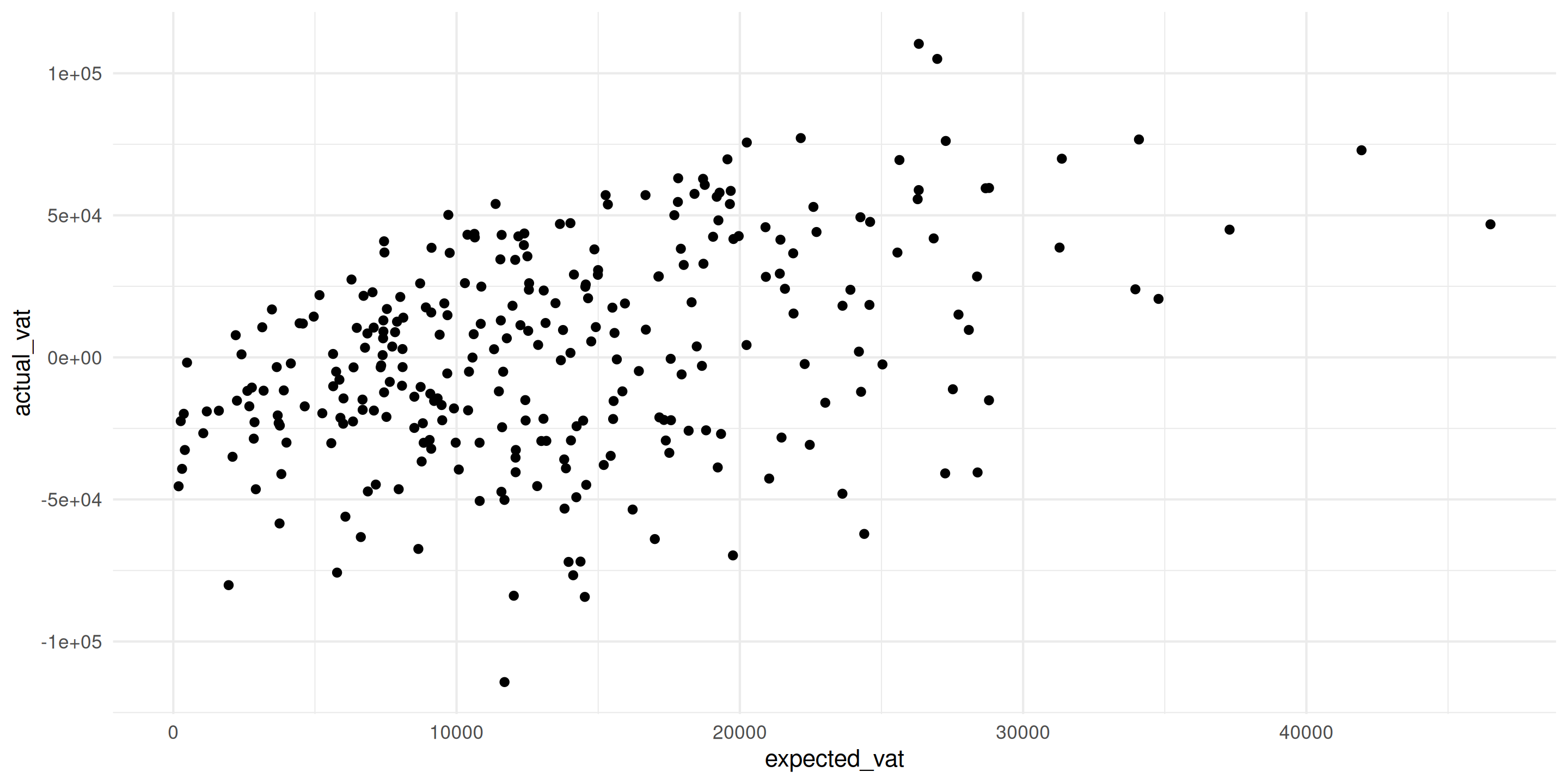
ggplot(vat_gap_analysis, aes(x = expected_vat, y = actual_vat)) +
  geom_point() +
  theme_minimal()

Position tells: Which firm has what values

Color: Adding a Third Dimension

Color can show categories:

ggplot(vat_gap_analysis, aes(x = expected_vat, y = actual_vat, color = firm_size)) +
  geom_point() +
  theme_minimal()

Now we see: Large firms (orange) cluster in top-right

Color vs Fill: Important Distinction

Different geoms use different aesthetics:

color - for points and lines:
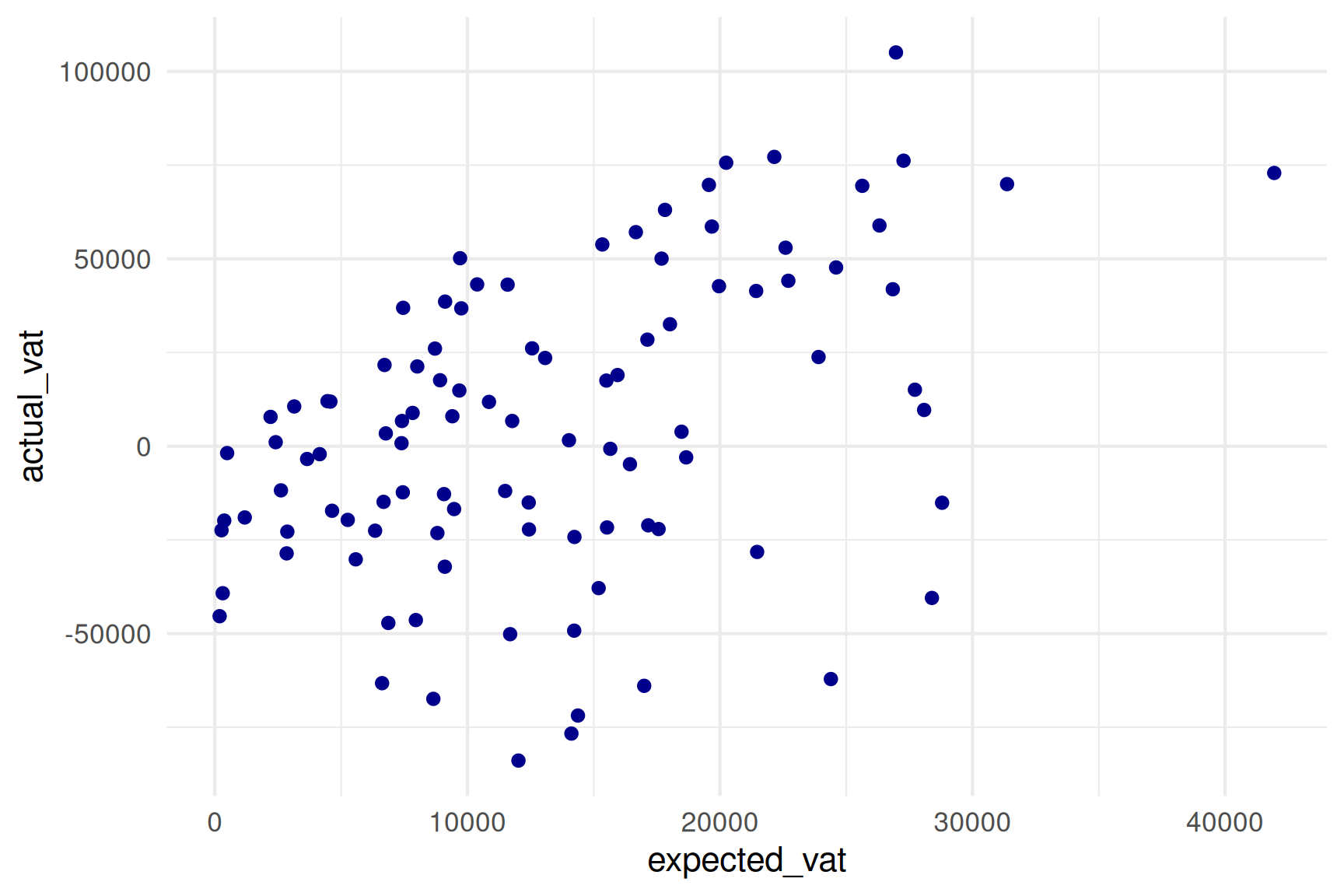
ggplot(vat_gap_analysis[1:100], 
       aes(x = expected_vat, 
           y = actual_vat)) +
  geom_point(color = "darkblue") +
  theme_minimal()

Use color for geom_point() and geom_line()
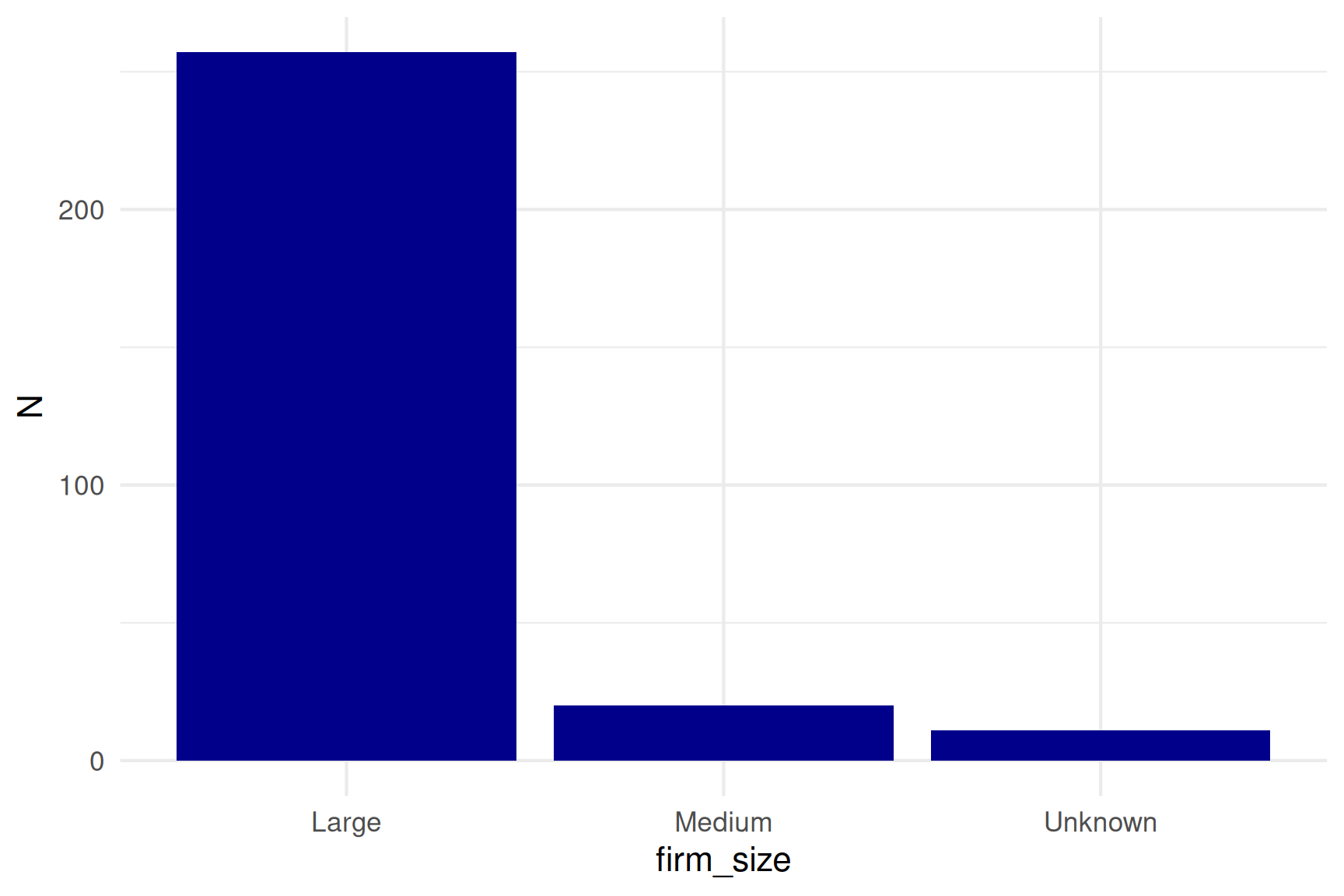
fill - for bars and areas:

firm_counts <- vat_gap_analysis[, .N, by = firm_size]

ggplot(firm_counts, 
       aes(x = firm_size, y = N)) +
  geom_bar(stat = "identity",
           fill = "darkblue") +
  theme_minimal()

Use fill for geom_bar() and similar shapes

Color AND Fill Together

Bars can have both fill (interior) and color (border):
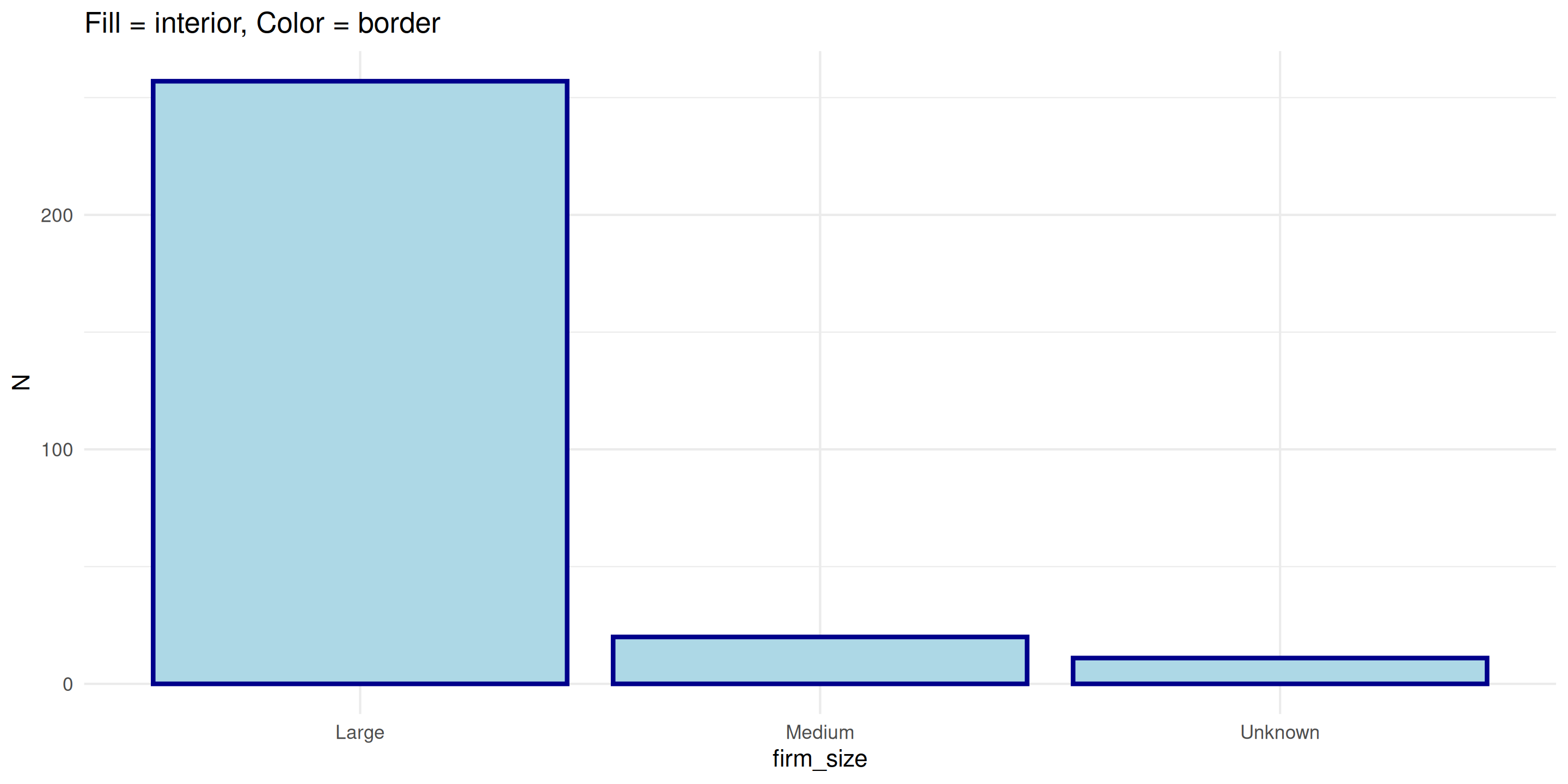
ggplot(firm_counts, aes(x = firm_size, y = N)) +
  geom_bar(stat = "identity", 
           fill = "lightblue",      # Interior color
           color = "darkblue",      # Border color
           linewidth = 1) +
  theme_minimal() +
  labs(title = "Fill = interior, Color = border")

Dica

Quick rule: Points use color, Bars use fill

Variables go inside aes(), fixed values go outside:

# ✓ CORRECT: color by a variable in your data
ggplot(data, aes(x = var1, y = var2, color = firm_size))

# ✓ CORRECT: make all points blue
ggplot(data, aes(x = var1, y = var2)) +
  geom_point(color = "blue")

# ❌ WRONG: "blue" is not a variable name
ggplot(data, aes(x = var1, y = var2, color = "blue"))

Importante

If it’s in your data → use aes()
If it’s a fixed choice → outside aes()

Practice: What’s Wrong Here?

# Plot A
ggplot(vat_data, aes(x = income, y = vat, color = "red"))

# Plot B  
ggplot(vat_data, aes(x = income, y = vat)) +
  geom_point(color = industry)

# Plot C
ggplot(vat_data, aes(x = income, y = vat, color = industry))

Answer: Only C is correct!

  • Plot A: “red” should be outside aes()
  • Plot B: industry should be inside aes()

Bar Charts

Bar Charts: When to Use

Best for: Comparing values across categories

In tax administration: - Total VAT by industry - Number of audits by region - Compliance rates by sector

# Pattern: categorical variable on x, numeric on y
ggplot(data, aes(x = category, y = value)) +
  geom_bar(stat = "identity")

Bar Chart: Basic Example

# Calculate total VAT by industry
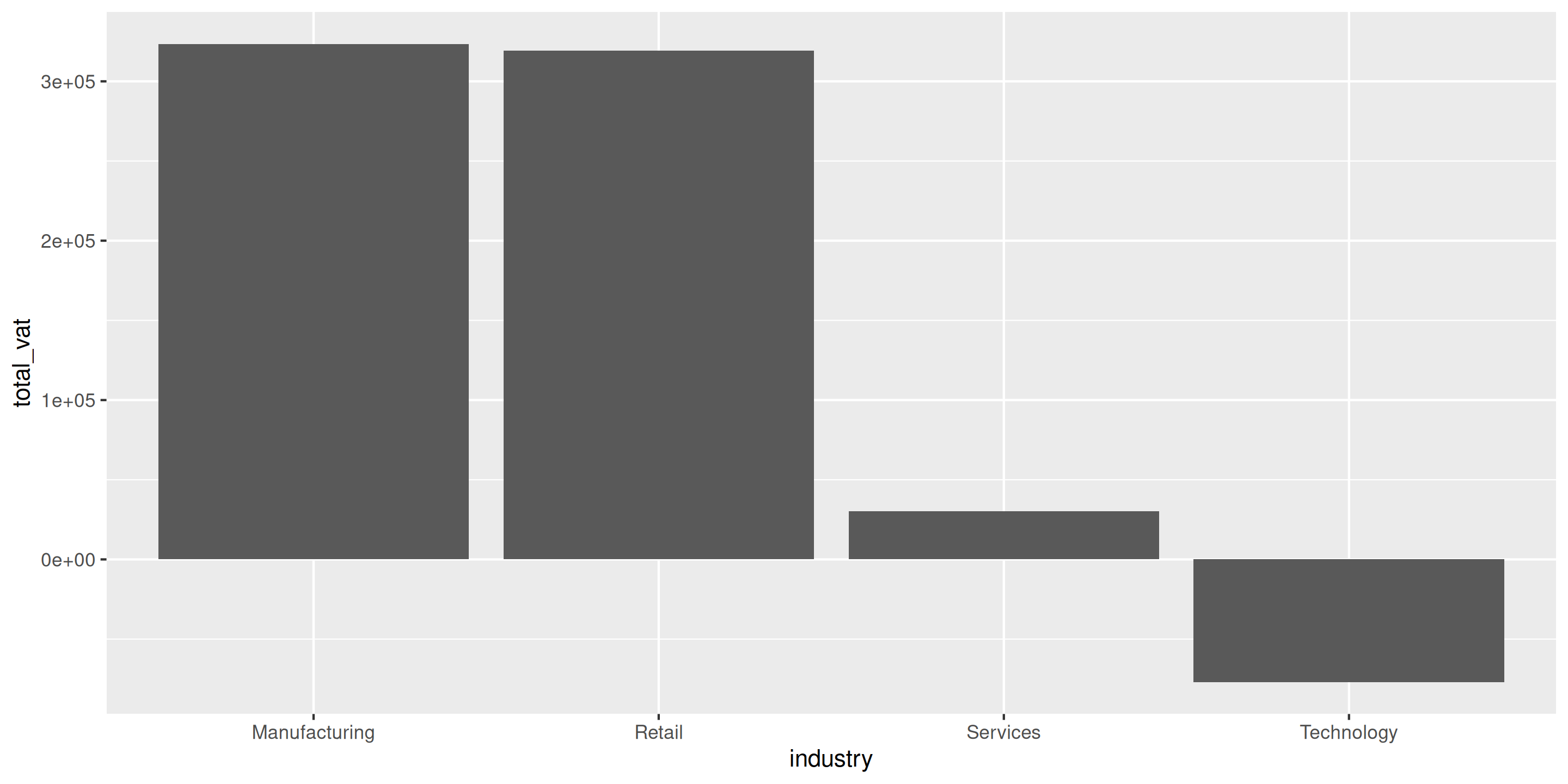
industry_vat <- vat_gap_analysis[, .(total_vat = sum(actual_vat)), by = industry]

ggplot(industry_vat, aes(x = industry, y = total_vat)) +
  geom_bar(stat = "identity")

Problem: Hard to read vertical labels

Bar Chart: Make It Horizontal
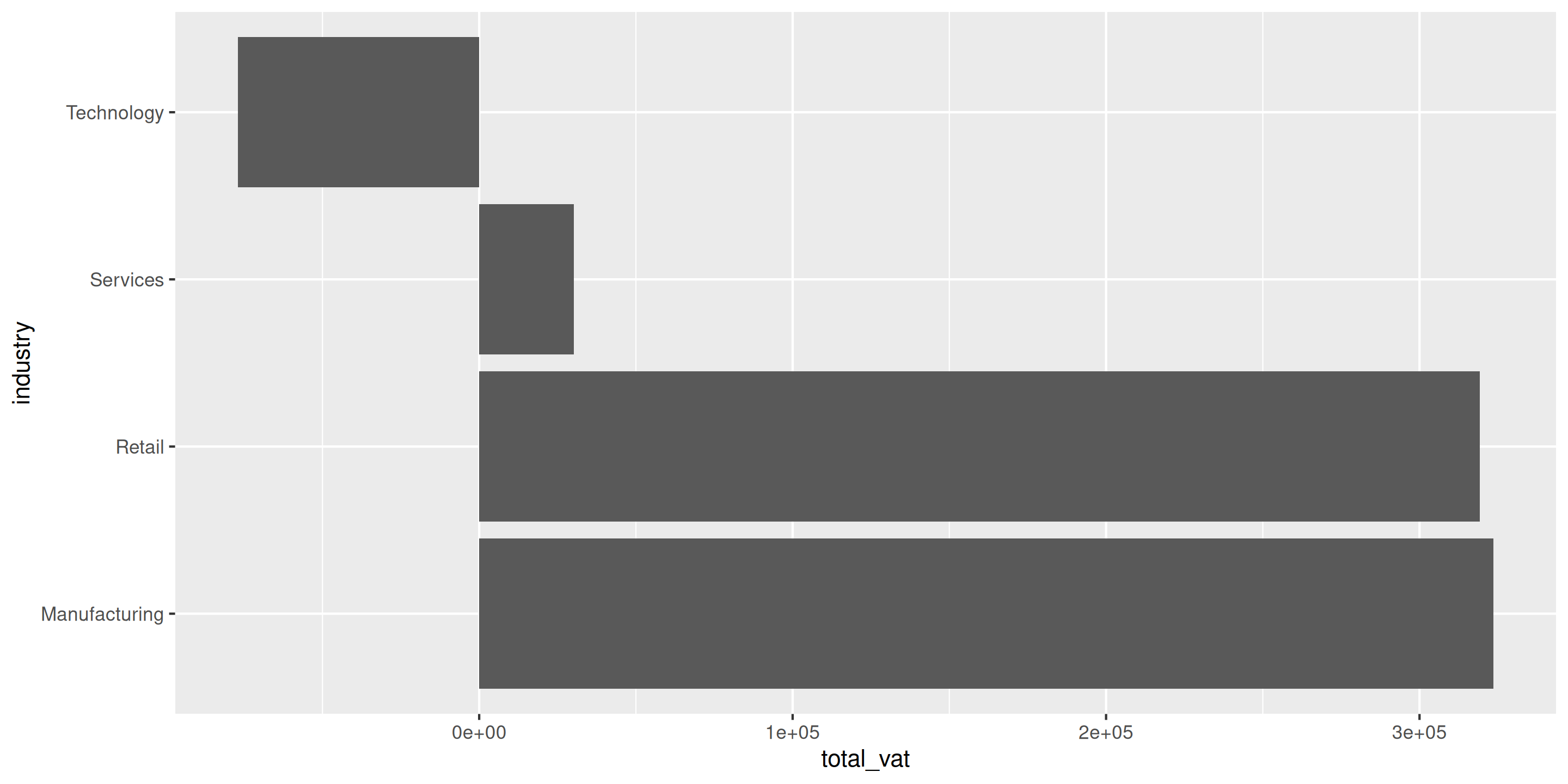
ggplot(industry_vat, aes(x = industry, y = total_vat)) +
  geom_bar(stat = "identity") +
  coord_flip()

Much better! coord_flip() rotates the plot

Bar Chart: Sort by Value
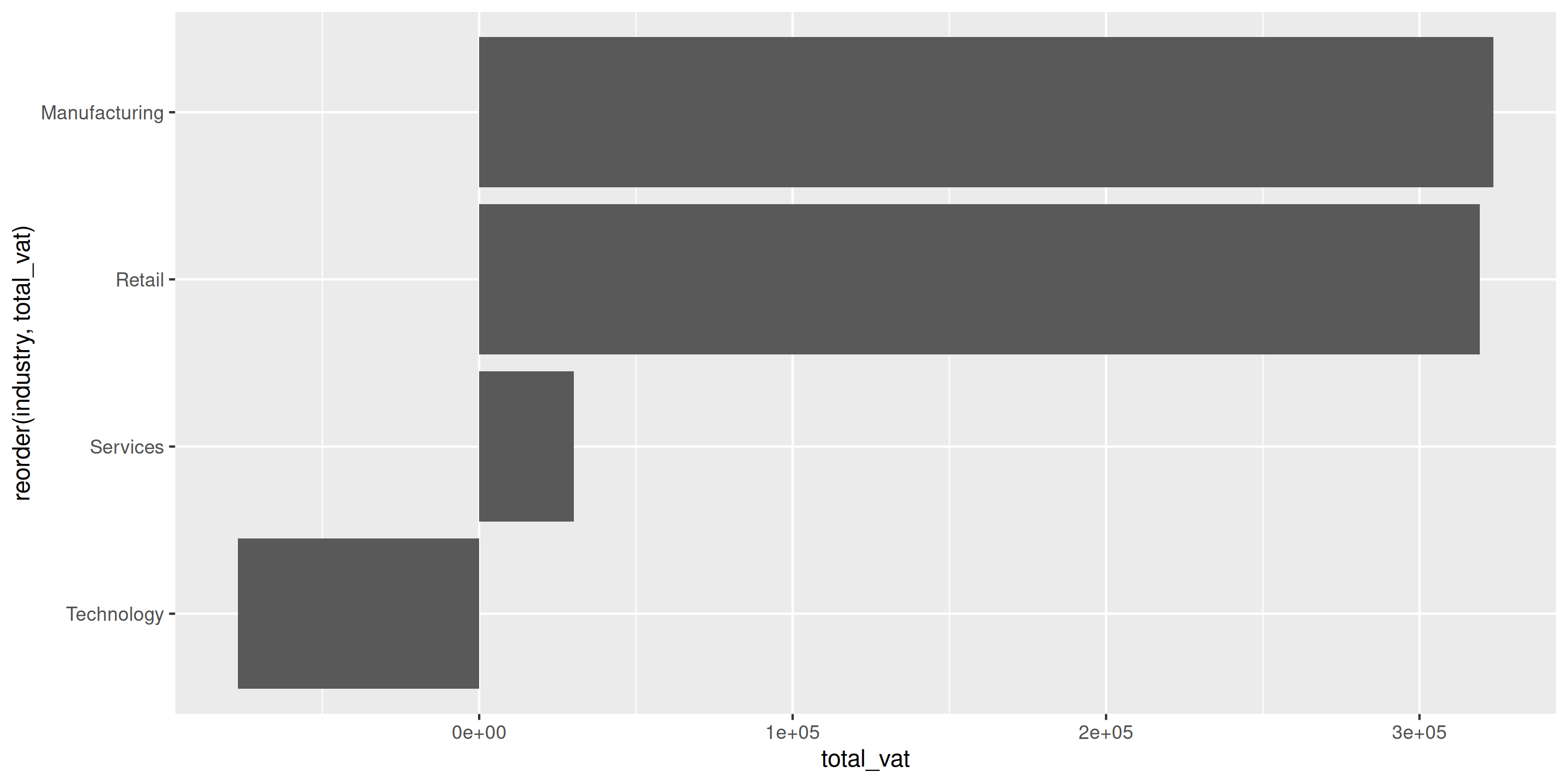
ggplot(industry_vat, aes(x = reorder(industry, total_vat), y = total_vat)) +
  geom_bar(stat = "identity") +
  coord_flip()

reorder(industry, total_vat) sorts industries by VAT amount

Bar Chart: Add Color and Labels

ggplot(industry_vat, aes(x = reorder(industry, total_vat), y = total_vat)) +
  geom_bar(stat = "identity", fill = "#3B9AB2") +
  coord_flip() +
  labs(
    title = "Total VAT Collection by Industry",
    x = NULL,
    y = "Total VAT (USD)"
  ) +
  theme_minimal()

Exercise 1: Grouped Bar Chart

10:00

Task: Create a grouped bar chart showing VAT collection by industry and firm size

Steps:

  1. Aggregate data: total actual_vat by industry AND firm_size
  2. Create bar chart with industry on x-axis, total_vat on y-axis
  3. Use fill = firm_size to color bars by firm size
  4. Add position = "dodge" to make bars side-by-side
  5. Make horizontal with coord_flip()
  6. Add proper labels and theme_minimal()

Question: Which combination (industry + firm size) collects the most VAT?

Grouped Bars: Comparing Multiple Categories

When you have TWO categorical variables:

# VAT by industry and firm size
industry_size <- vat_gap_analysis[, .(total_vat = sum(actual_vat)/1e6), 
                                   by = .(industry, firm_size)]

Create side-by-side bars with position = "dodge":

ggplot(industry_size, aes(x = industry, y = total_vat, fill = firm_size)) +
  geom_bar(stat = "identity", position = "dodge") +
  coord_flip() +
  labs(
    title = "VAT Collection by Industry and Firm Size",
    x = NULL,
    y = "Total VAT (Millions USD)",
    fill = "Firm Size"
  ) +
  theme_minimal()

Stacked Bars: Showing Composition

Show total AND breakdown with stacked bars:

ggplot(industry_size, aes(x = reorder(industry, total_vat), y = total_vat, fill = firm_size)) +
  geom_bar(stat = "identity", position = "stack") +  # position = "stack" is default
  coord_flip() +
  labs(
    title = "VAT Collection by Industry (by Firm Size)",
    x = NULL,
    y = "Total VAT (Millions USD)",
    fill = "Firm Size"
  ) +
  scale_fill_brewer(palette = "Set2") +
  theme_minimal()

Each bar shows total, colors show contribution from each firm size

Grouped vs Stacked: When to Use

Use Grouped Bars when:

  • Comparing values across groups
  • Want to see individual values clearly
  • Have 2-4 categories per group

Example: Compare small vs large firms across industries

Use Stacked Bars when:

  • Showing total AND composition
  • Interested in proportions
  • Want to see cumulative effect

Example: Total VAT with breakdown by firm size

Aviso

Avoid stacking when comparing values - hard to read middle/top segments!

Scatter Plots

Scatter Plots: When to Use

Best for: Showing relationships between two continuous variables

In tax administration: - Expected vs actual VAT (compliance) - Firm size vs tax liability - Inputs vs outputs

# Pattern: two numeric variables
ggplot(data, aes(x = numeric_var1, y = numeric_var2)) +
  geom_point()

Scatter Plot: Basic Example

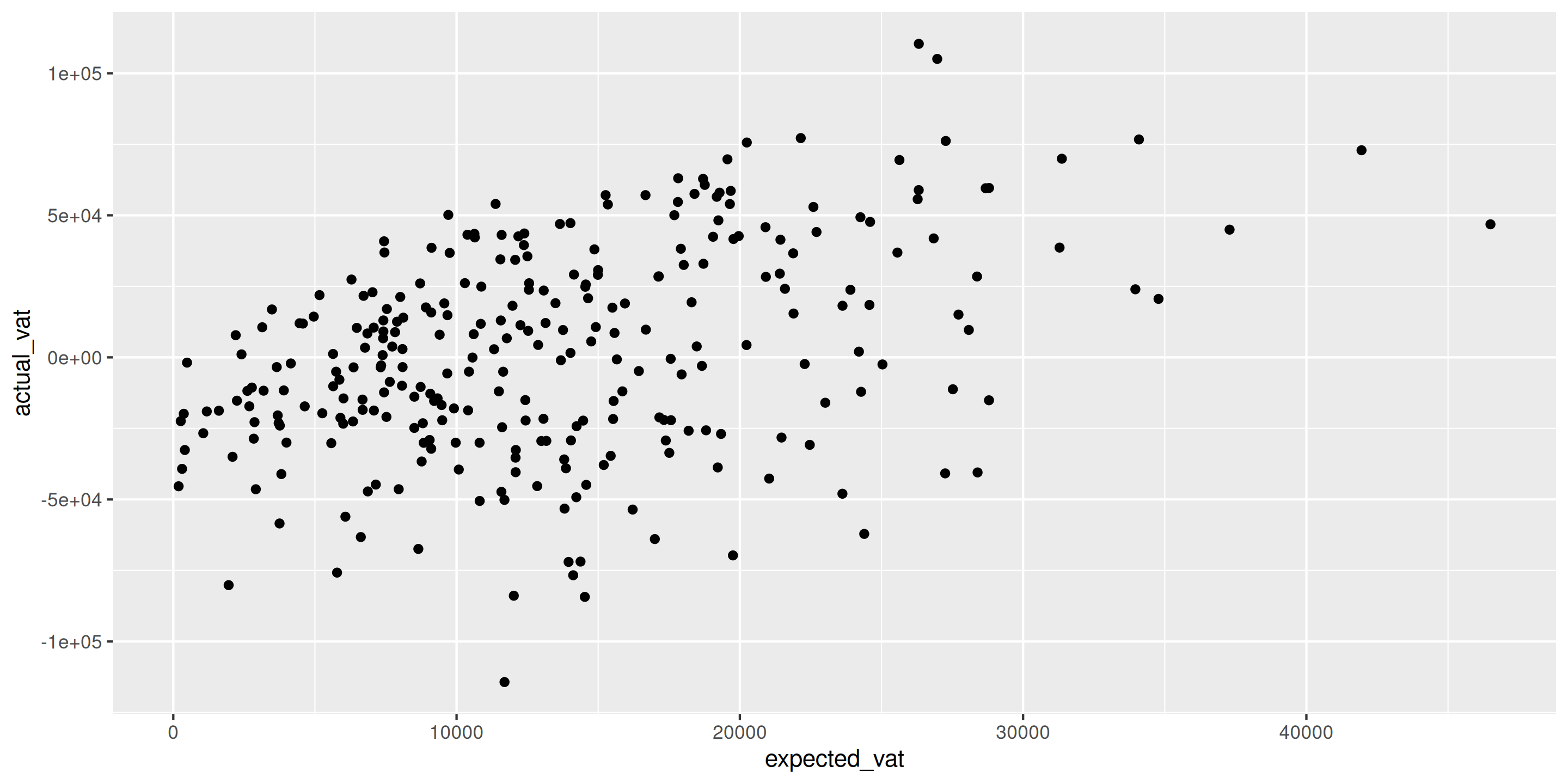
ggplot(vat_gap_analysis, aes(x = expected_vat, y = actual_vat)) +
  geom_point()

Shows relationship between expected and actual VAT

Scatter Plot: Add Color for Groups
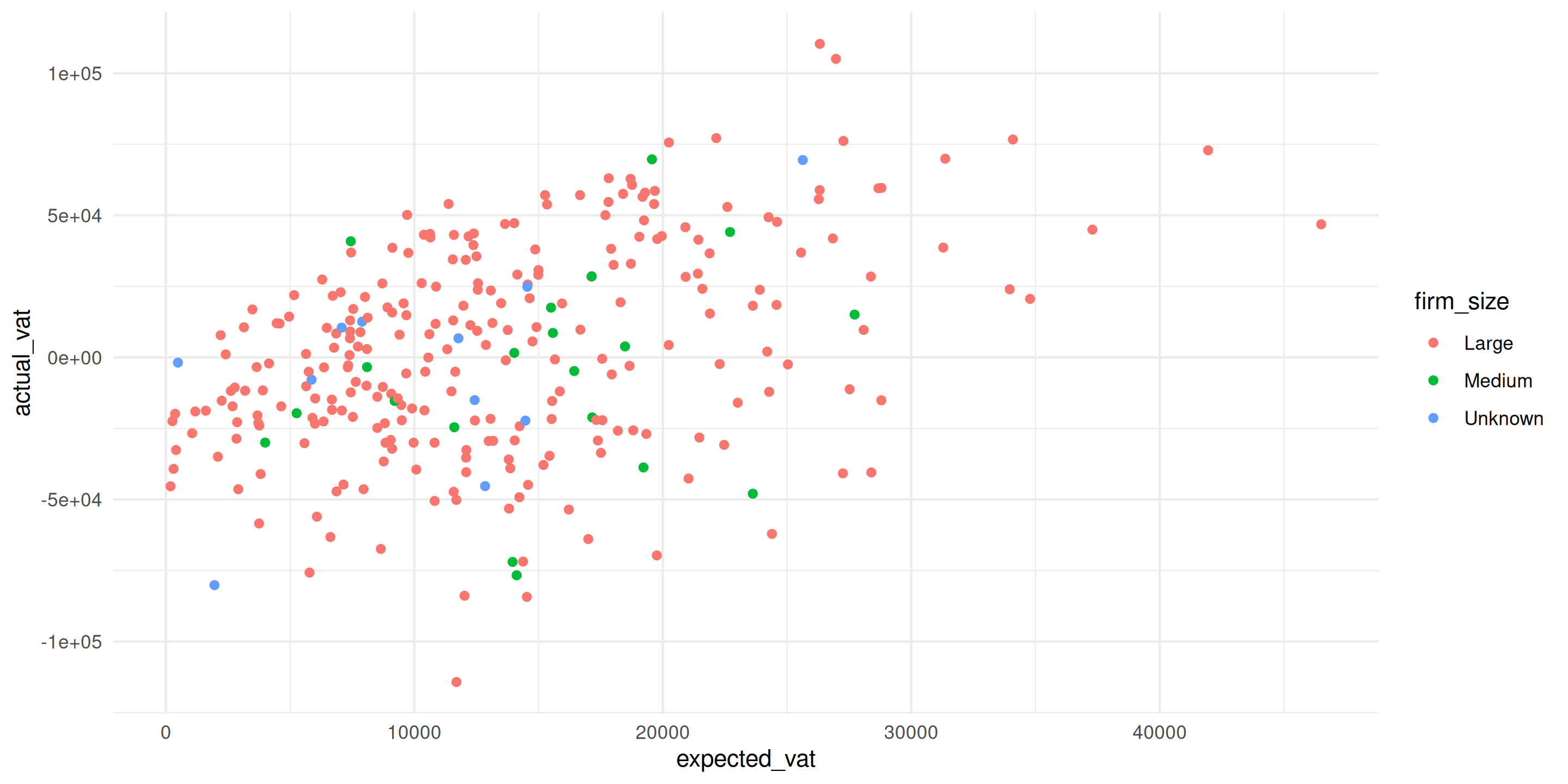
ggplot(vat_gap_analysis, aes(x = expected_vat, y = actual_vat, color = firm_size)) +
  geom_point() +
  theme_minimal()

Now we see: Pattern differs by firm size

Scatter Plot: Add a Reference Line
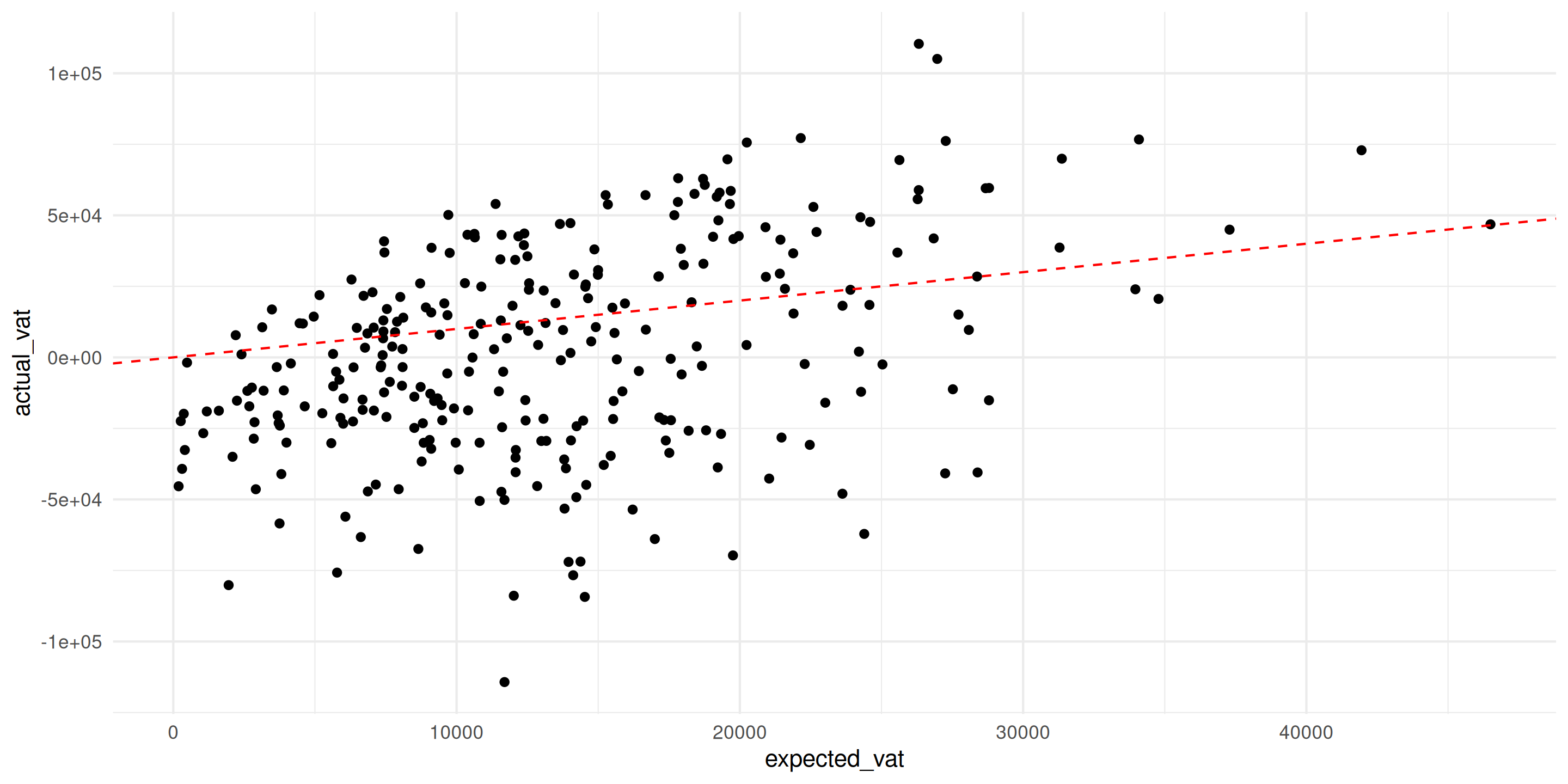
ggplot(vat_gap_analysis, aes(x = expected_vat, y = actual_vat)) +
  geom_point() +
  geom_abline(intercept = 0, slope = 1, color = "red", linetype = "dashed") +
  theme_minimal()

Red line shows perfect compliance (actual = expected)

Scatter Plot: Add a Trend Line
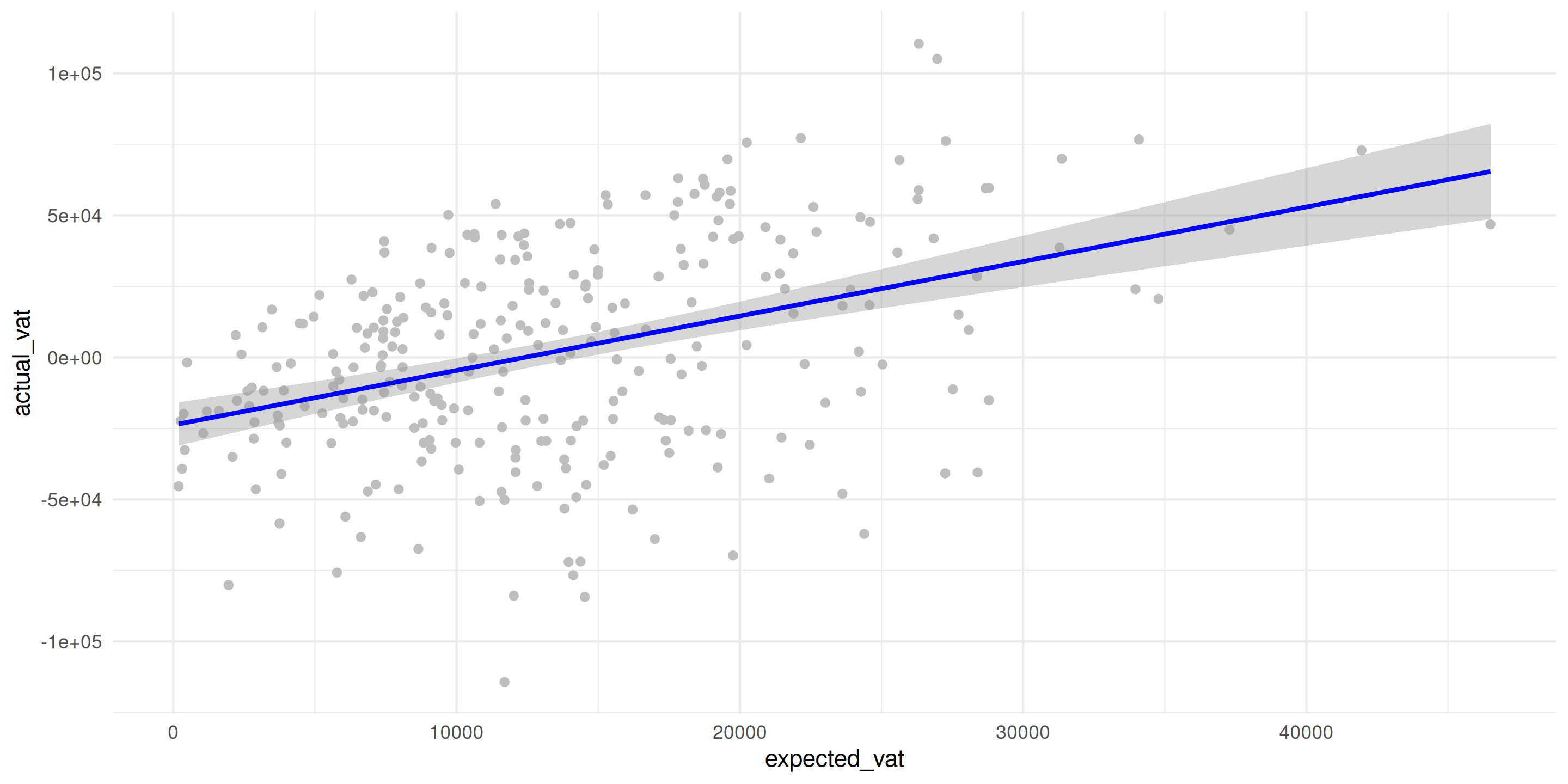
ggplot(vat_gap_analysis, aes(x = expected_vat, y = actual_vat)) +
  geom_point(color = "gray") +
  geom_smooth(method = "lm", color = "blue") +
  theme_minimal()

geom_smooth(method = "lm") adds linear trend line

Scatter Plot: Professional Version
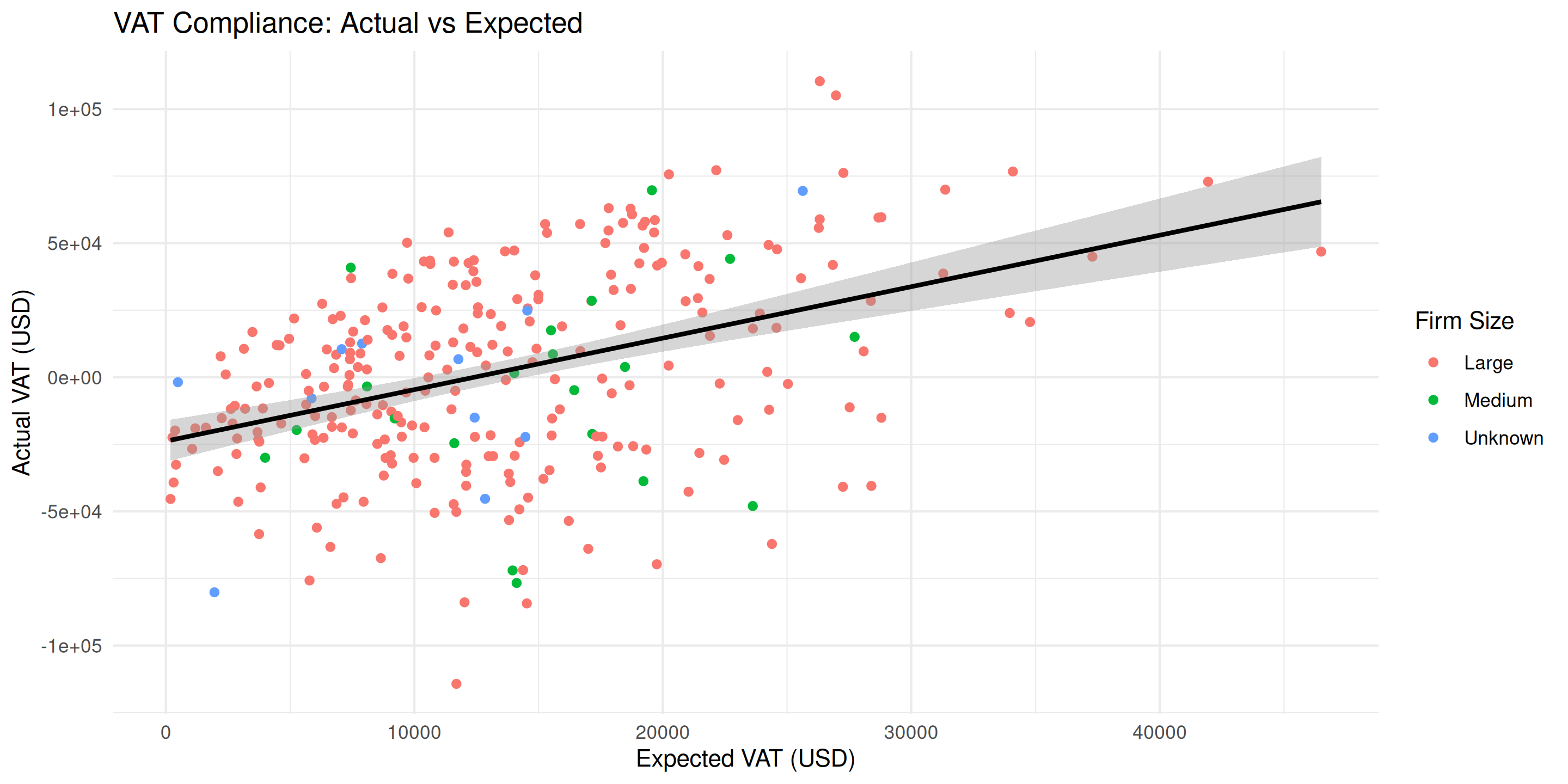
ggplot(vat_gap_analysis, aes(x = expected_vat, y = actual_vat)) +
  geom_point(aes(color = firm_size)) +
  geom_smooth(method = "lm", color = "black") +
  labs(
    title = "VAT Compliance: Actual vs Expected",
    x = "Expected VAT (USD)",
    y = "Actual VAT (USD)",
    color = "Firm Size"
  ) +
  theme_minimal()

Exercise 2: Scatter Plot

08:00

Task: Create a scatter plot of VAT inputs vs outputs

Steps:

  1. Use vat_gap_analysis dataset
  2. Map vat_inputs to x-axis, vat_outputs to y-axis
  3. Add geom_point() with color by industry
  4. Add reference line: geom_abline(intercept = 0, slope = 1)
  5. Add proper labels

Question: What does the reference line represent?

Line Charts

Line Charts: When to Use

Best for: Showing trends over time

In tax administration: - Monthly VAT collection - Compliance rates over years - Quarterly trends by sector

# Pattern: time on x-axis, value on y-axis
ggplot(data, aes(x = year, y = value)) +
  geom_line()

Line Chart: Basic Time Trend

# Aggregate by year
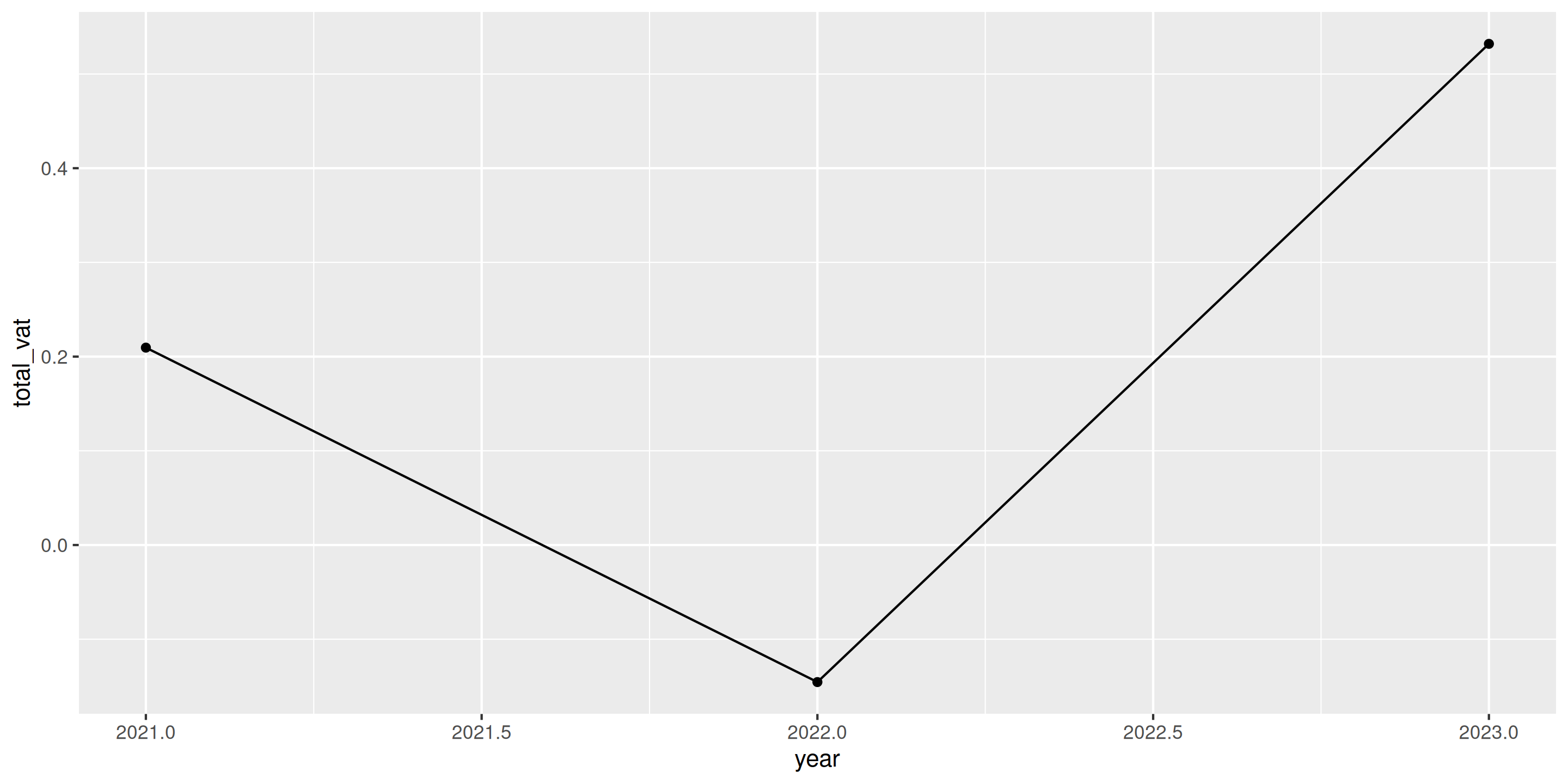
vat_by_year <- vat_gap_analysis[, .(total_vat = sum(actual_vat)/1e6), by = year]

ggplot(vat_by_year, aes(x = year, y = total_vat)) +
  geom_line() +
  geom_point()

Best practice: Add geom_point() to show actual data points

Line Chart: Multiple Groups
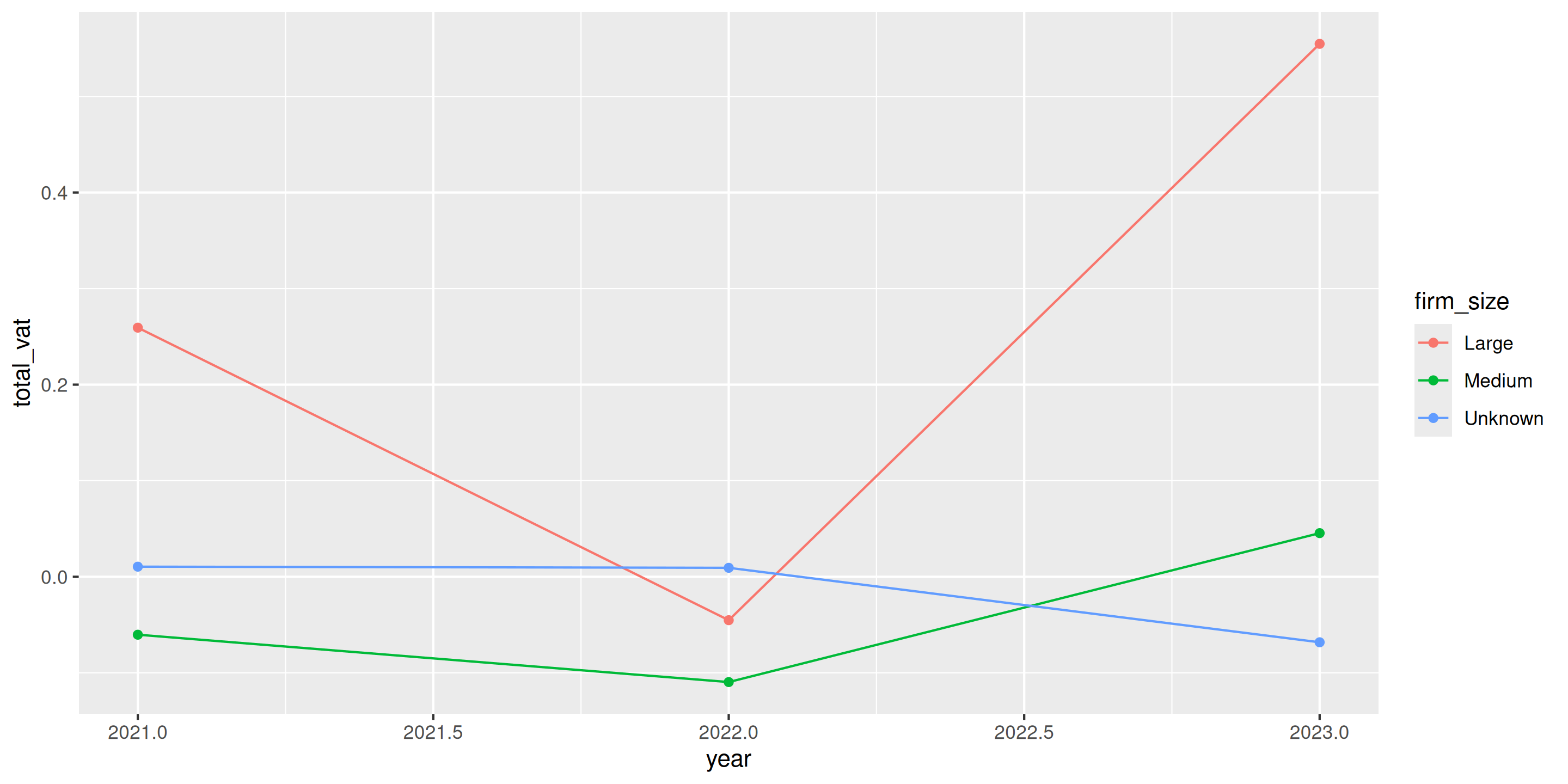
# Aggregate by year and firm size
vat_by_year_size <- vat_gap_analysis[, .(total_vat = sum(actual_vat)/1e6), 
                                      by = .(year, firm_size)]

ggplot(vat_by_year_size, aes(x = year, y = total_vat, color = firm_size)) +
  geom_line() +
  geom_point()

Color automatically creates separate lines for each group!

Line Chart: Professional Version
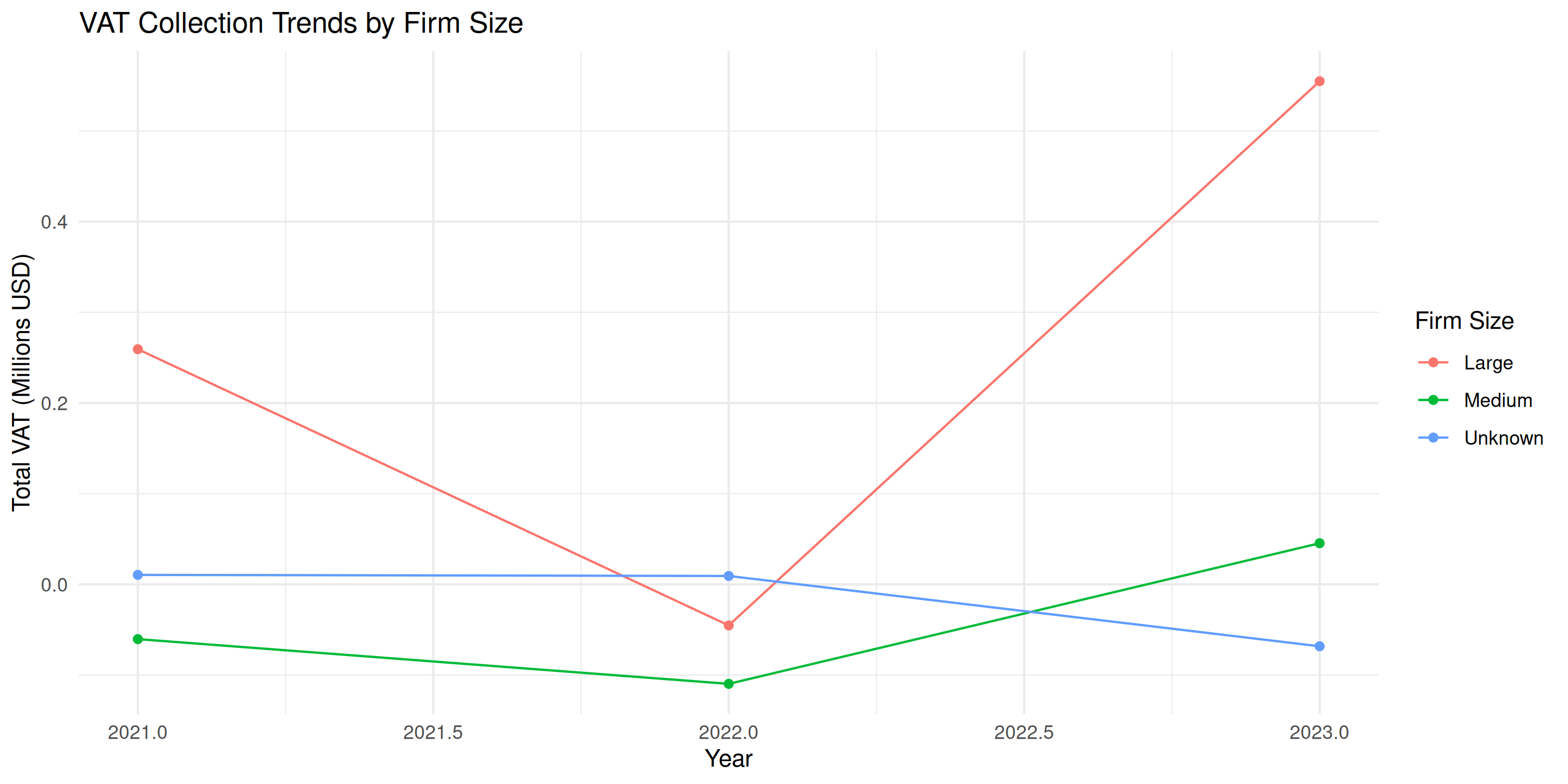
ggplot(vat_by_year_size, aes(x = year, y = total_vat, color = firm_size)) +
  geom_line() +
  geom_point() +
  labs(
    title = "VAT Collection Trends by Firm Size",
    x = "Year",
    y = "Total VAT (Millions USD)",
    color = "Firm Size"
  ) +
  theme_minimal()

Exercise 3: Line Chart

08:00

Task: Create a line chart showing average VAT gap over time

Steps:

  1. Aggregate data: calculate average vat_gap by year
  2. Create line chart with geom_line() and geom_point()
  3. Map year to x-axis, average gap to y-axis
  4. Add proper title and labels
  5. Use theme_minimal()

Question: Is the VAT gap increasing or decreasing?

Faceting

Faceting: Small Multiples

When you have many categories, faceting is better than color:

# Instead of cramming everything in one plot with many colors...
ggplot(data, aes(x = var1, y = var2, color = category))  # messy!

# Create separate panels for each category
ggplot(data, aes(x = var1, y = var2)) +
  geom_point() +
  facet_wrap(~ category)  # clean!

Faceting: Basic Example

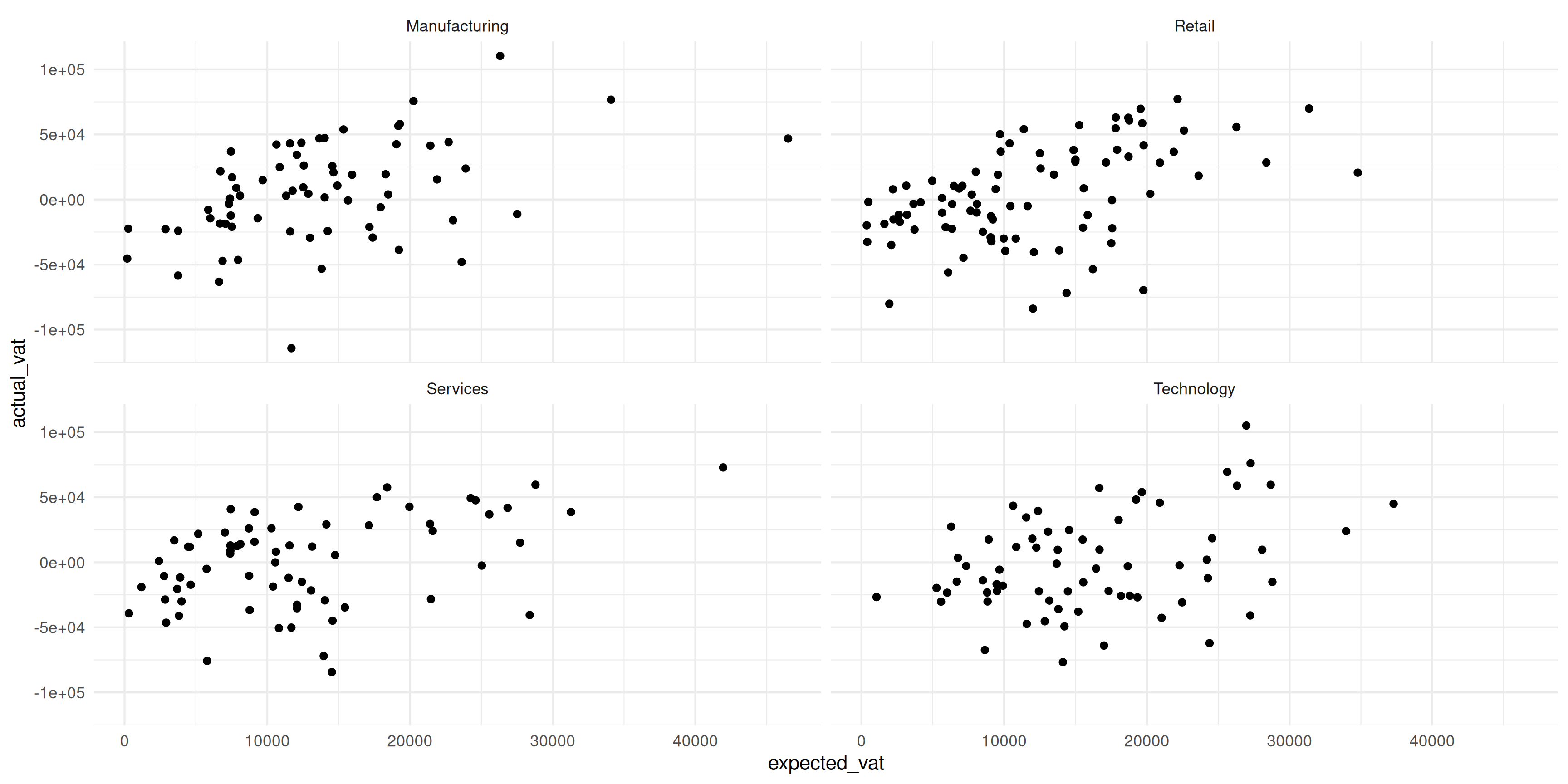
ggplot(vat_gap_analysis, aes(x = expected_vat, y = actual_vat)) +
  geom_point() +
  facet_wrap(~ industry) +
  theme_minimal()

Each industry gets its own panel - much clearer!

Faceting: Control Layout
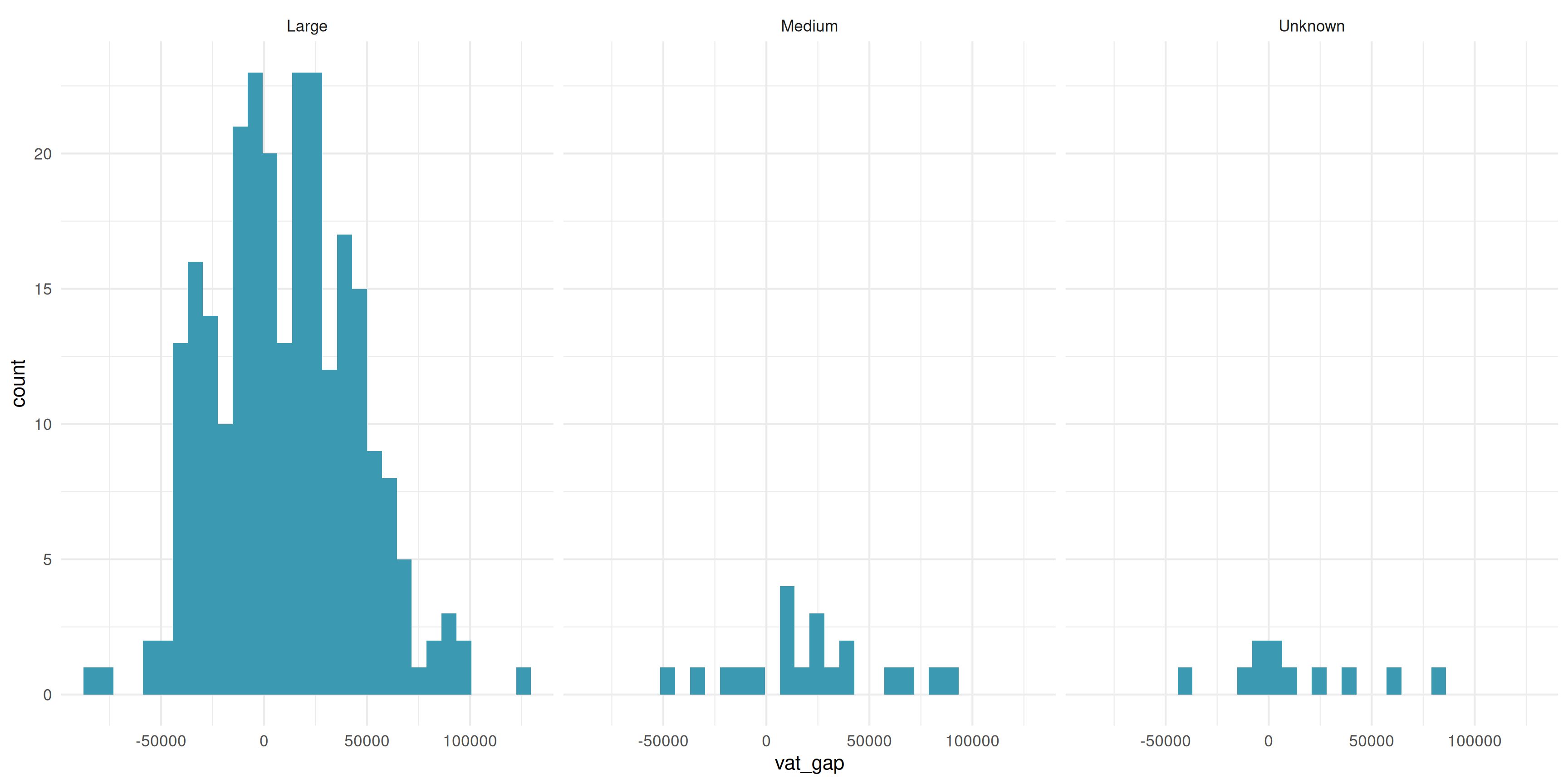
ggplot(vat_gap_analysis, aes(x = vat_gap)) +
  geom_histogram(bins = 30, fill = "#3B9AB2") +
  facet_wrap(~ firm_size, ncol = 3) +
  theme_minimal()

ncol = 3 controls number of columns

Faceting: When to Use

Use faceting when:

  • You have many categories (>3-4)
  • Categories overlap too much with color
  • You want to compare patterns across groups

Syntax:

facet_wrap(~ variable)        # One grouping variable
facet_wrap(~ var1 + var2)     # Two variables (creates many panels!)

Exercise 4: Faceted Plot

10:00

Task: Create faceted scatter plots by industry

Steps:

  1. Create scatter plot: taxable_income vs actual_vat
  2. Add geom_point()
  3. Add facet_wrap(~ industry)
  4. Add trend line with geom_smooth(method = "lm")
  5. Add proper labels and theme

Professional Polish

Labels: Make It Professional

Always include:

  • Informative title
  • Axis labels with units
  • Data source
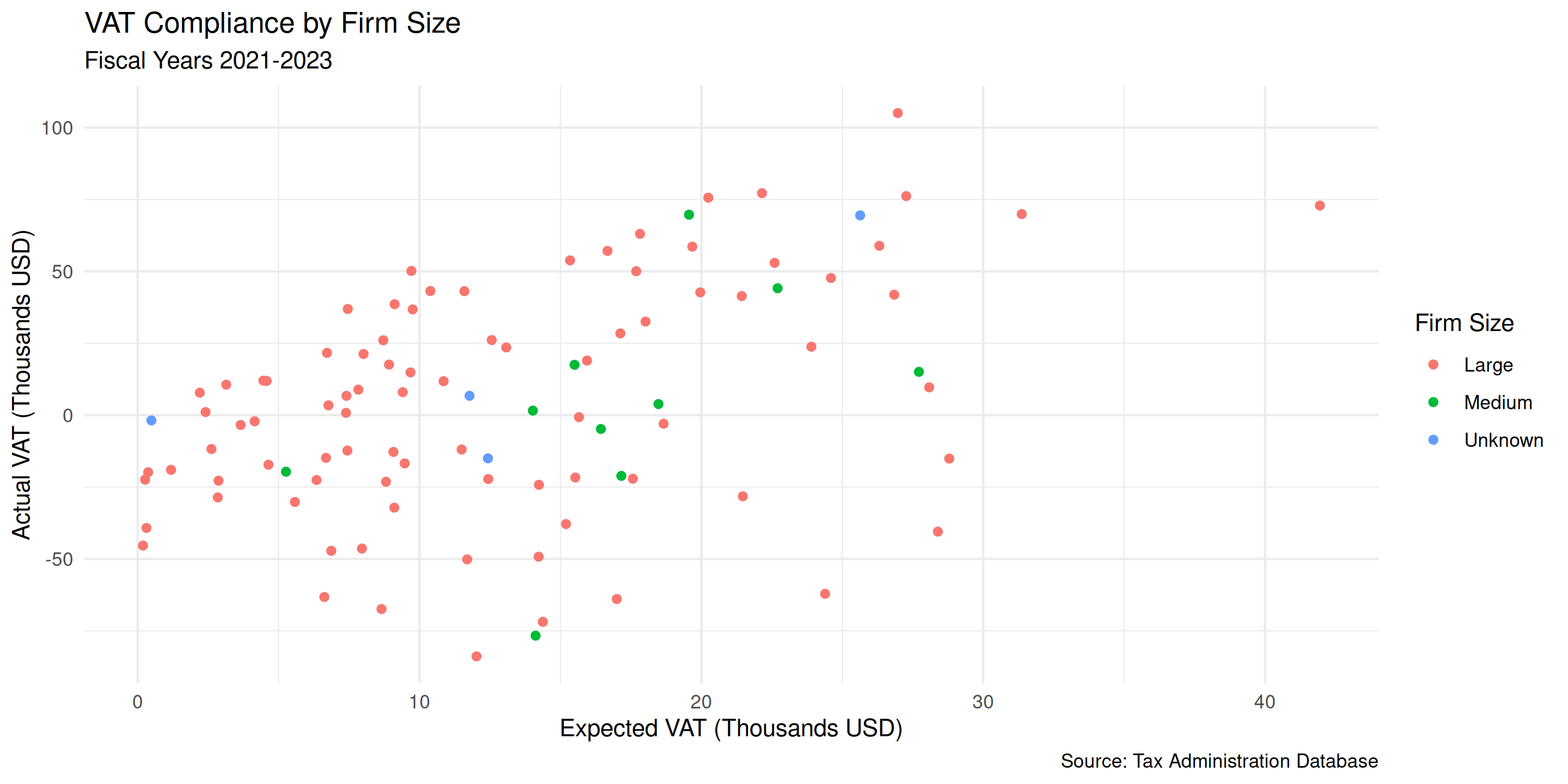
ggplot(vat_gap_analysis[1:100], aes(x = expected_vat/1000, y = actual_vat/1000)) +
  geom_point(aes(color = firm_size)) +
  labs(
    title = "VAT Compliance by Firm Size",
    subtitle = "Fiscal Years 2021-2023",
    x = "Expected VAT (Thousands USD)",
    y = "Actual VAT (Thousands USD)",
    color = "Firm Size",
    caption = "Source: Tax Administration Database"
  ) +
  theme_minimal()
Themes: Clean Appearance

Recommended theme for reports:
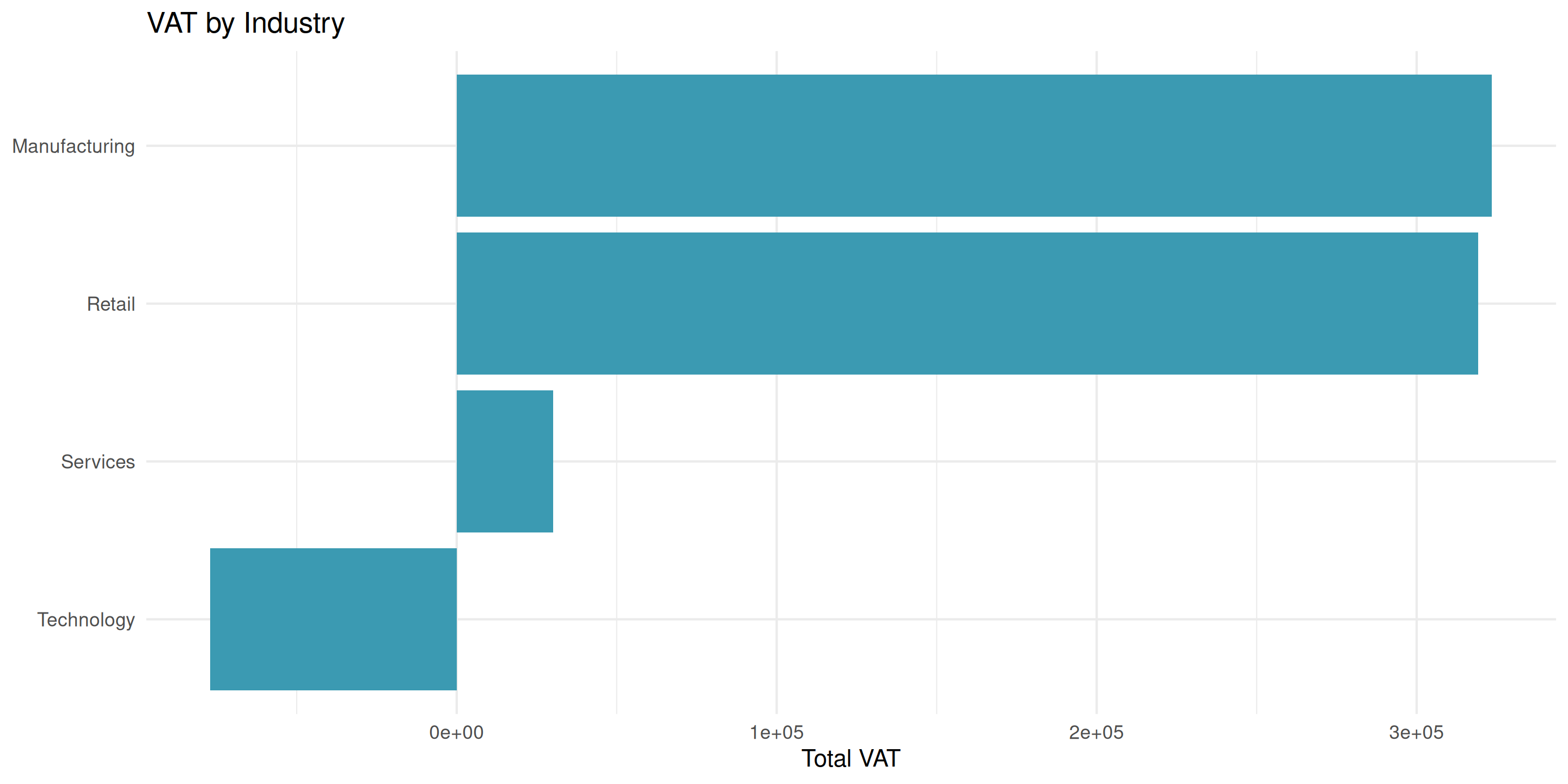
ggplot(industry_vat, aes(x = reorder(industry, total_vat), y = total_vat)) +
  geom_bar(stat = "identity", fill = "#3B9AB2") +
  coord_flip() +
  labs(title = "VAT by Industry", x = NULL, y = "Total VAT") +
  theme_minimal()

theme_minimal() gives clean, modern look

Colors: Use Professional Palettes
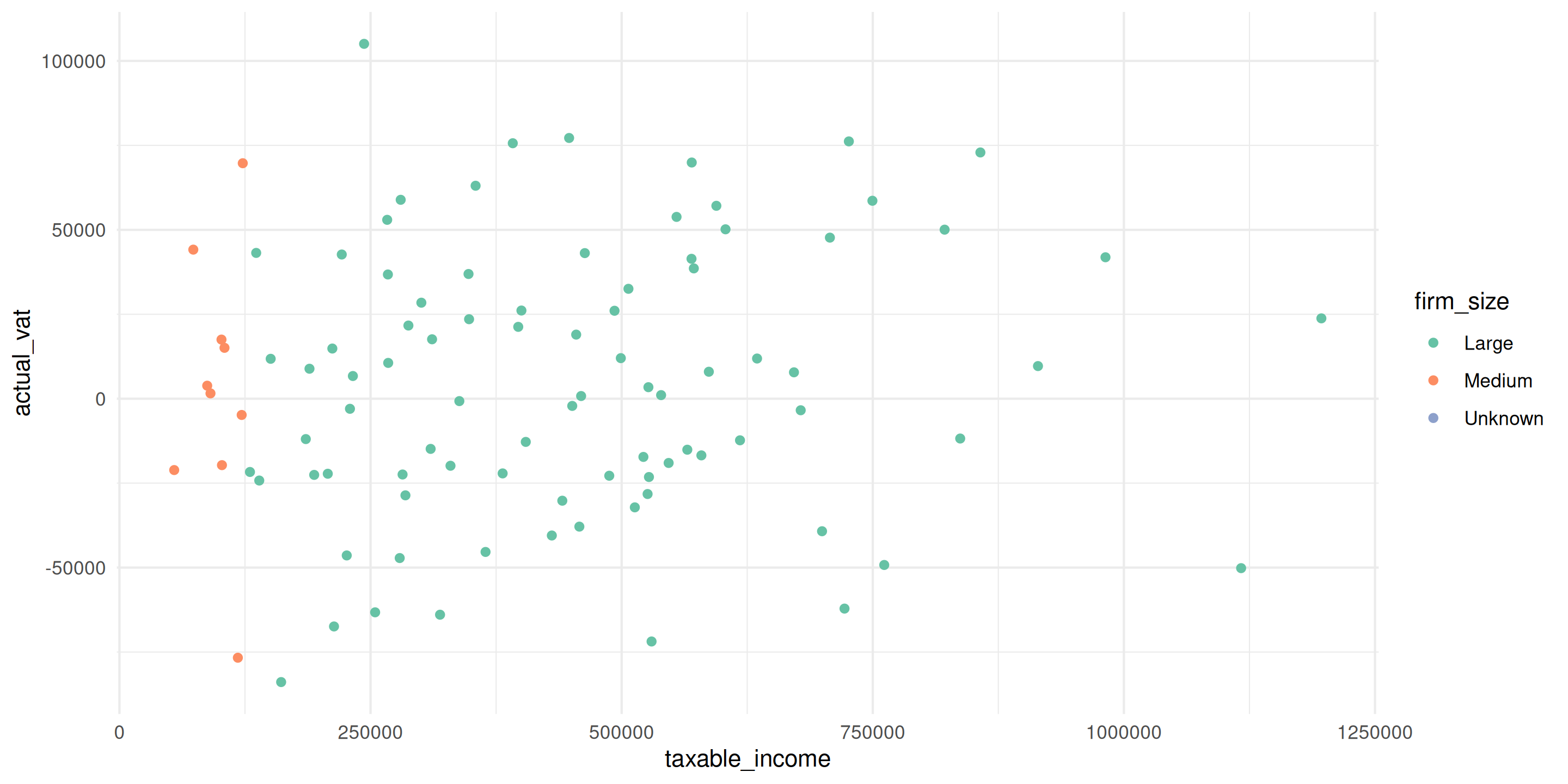
ggplot(vat_gap_analysis[1:100], aes(x = taxable_income, y = actual_vat, color = firm_size)) +
  geom_point() +
  scale_color_brewer(palette = "Set2") +  # Professional, colorblind-friendly
  theme_minimal()

ColorBrewer palettes: “Set1”, “Set2”, “Dark2” are good defaults

Saving Your Work

# First, create and save plot to object
my_plot <- ggplot(vat_gap_analysis, aes(x = expected_vat, y = actual_vat)) +
  geom_point() +
  theme_minimal()

# Save as PNG for presentations
ggsave(
  filename = "vat_compliance.png",
  plot = my_plot,
  width = 10,
  height = 6,
  dpi = 300
)

# Save as PDF for reports
ggsave("vat_compliance.pdf", plot = my_plot, width = 10, height = 6)

Best Practices Checklist

Before sharing any visualization:

  • ✓ Clear, descriptive title
  • ✓ Axis labels with units (USD, %, count, etc.)
  • ✓ Appropriate chart type for your data
  • ✓ Sorted bars (by value, not alphabet)
  • ✓ Professional theme (theme_minimal())
  • ✓ Data source in caption
  • ✓ Saved at high resolution (300 dpi)

Final Exercise: Complete Analysis

20:00

Task: Create three professional plots for a tax report

Create:

  1. Bar chart: Total VAT by industry (sorted, horizontal)
  2. Scatter plot: Expected vs actual VAT with trend line and color by firm size
  3. Line chart: Average VAT gap over time

All plots must have: - Proper titles and labels - theme_minimal() - Professional colors - Data source caption

Save all three as PNG files (300 dpi)

Wrap-Up

What You’ve Learned

Core concepts: - When to use bar charts, scatter plots, and line charts - The ggplot2 template: ggplot() + aes() + geom_*() - Mapping data to aesthetics (x, y, color, fill) - Fill vs color: points use color, bars use fill - The aes() rule: variables inside, fixed values outside

Practical skills: - Create professional visualizations - Grouped and stacked bars for multiple categories - Add labels and themes - Use faceting for multiple groups - Save high-quality plots

Common Mistakes to Avoid

⚠️ Forgetting the +

# ❌ Error!
ggplot(data, aes(x = var1, y = var2))
  geom_point()

# ✓ Correct
ggplot(data, aes(x = var1, y = var2)) +
  geom_point()

⚠️ Wrong use of aes() - Variables → inside aes() - Fixed values → outside aes()

Quick Reference

Bar chart:

# Simple bar chart
ggplot(data, aes(x = category, y = value)) +
  geom_bar(stat = "identity", fill = "blue") +
  coord_flip()

# Grouped bars
ggplot(data, aes(x = category, y = value, fill = group)) +
  geom_bar(stat = "identity", position = "dodge") +
  coord_flip()

# Stacked bars
ggplot(data, aes(x = category, y = value, fill = group)) +
  geom_bar(stat = "identity", position = "stack") +
  coord_flip()

Scatter plot:

ggplot(data, aes(x = var1, y = var2, color = group)) +
  geom_point() +
  geom_smooth(method = "lm")

Line chart:

ggplot(data, aes(x = time, y = value, color = group)) +
  geom_line() +
  geom_point()

Remember: Points use color, Bars use fill

Resources

Documentation: - R for Data Science - Chapter 2 - ggplot2 Cheat Sheet

Examples: - R Graph Gallery

Dica

When stuck: Google “ggplot how to…” - there’s almost always an example!

Thank You!

You can now: - Choose the right plot type for your question - Create professional tax visualizations - Communicate data insights effectively

Practice makes perfect: - Try these techniques with your own data - Start simple, add complexity gradually - Share plots with colleagues for feedback

Questions?